

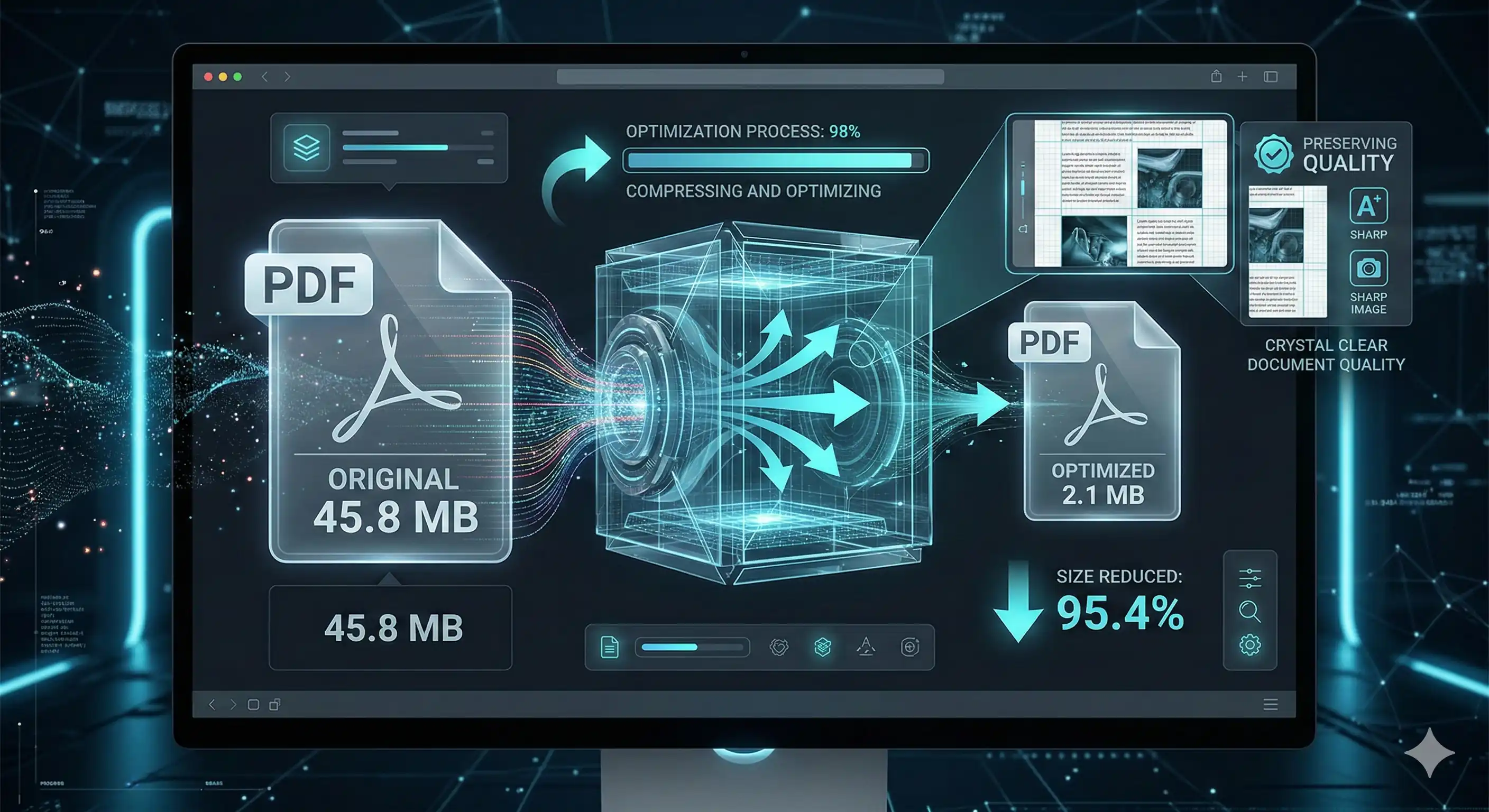
You've finished a report, a portfolio, or a proposal — and the PDF is 47 MB. Email bounces it. Google Drive slows to a crawl uploading it. Your client can't open it on their phone. Sound familiar?
The good news: you can dramatically reduce PDF file size without any visible loss in quality. No expensive software, no complex settings. This step-by-step guide covers every method — from a free browser tool that takes 10 seconds, to advanced techniques for power users who need maximum control.
Why Do PDFs Get So Large?
Before compressing anything, it helps to understand why PDFs bloat. A PDF is essentially a container — it can hold text, fonts, images, vector graphics, form fields, metadata, digital signatures, embedded files, and more. Each of these adds weight.
The most common culprits behind oversized PDFs are:
- High-resolution images — A single 300 DPI photo exported from Photoshop or InDesign can be 5–15 MB before compression. Most screens only need 72–150 DPI.
- Embedded fonts — Fonts are embedded in full (every glyph) even if your document only uses 12 characters from a 400-glyph typeface.
- No image compression applied at export — Many apps (Word, Google Docs, Keynote) export PDFs with lossless or near-lossless image quality by default.
- Duplicate content — Repeated images, redundant objects, and unused page resources that weren't cleaned up.
- Scan-based PDFs — Scanned documents are essentially images of pages, not text, making them enormous with no OCR applied.
- Embedded assets — Videos, audio, 3D objects, or attached files bundled inside the PDF.
Knowing the cause tells you which method will have the biggest impact for your specific file.
Before You Compress: Two Things to Check
1. Keep the Original
Always compress a copy of your PDF, never the original. Even lossless-looking compression can subtly degrade quality over multiple rounds. Keep your source file untouched.
2. Know Your Use Case
The right compression level depends entirely on how the PDF will be used:
| Use Case | Target Size | Acceptable Quality Loss |
|---|---|---|
| Email attachment | Under 10 MB | Low — minor image softening OK |
| Web / online sharing | Under 5 MB | Moderate — screen viewing only |
| Mobile viewing | Under 2 MB | Moderate |
| Commercial print | Any | None — use lossless only |
| Archiving | Any | None — preserve all data |
Method 1: Free Online PDF Compressor (Fastest — 10 Seconds)
For most people, this is the only method they'll ever need. AI Tech Tactics' free PDF Compressor runs entirely in your browser — your file never leaves your device, there's no account to create, and it works on any operating system.
- Open the tool — Go to aitechtactics.com/tools and select the PDF Compressor.
- Upload your PDF — Drag and drop or click to select. Files up to 100 MB are supported.
- Choose your compression level — Low (minimal quality loss), Medium (recommended for most files), or High (maximum size reduction).
- Click Compress — Processing happens in seconds directly in your browser.
- Download your compressed PDF — Compare sizes before saving. Most files shrink 40–80%.
This method works for the vast majority of PDFs — reports, presentations, portfolios, invoices, and scanned documents. If your file is image-heavy, the results are especially dramatic.
Method 2: Compress Embedded Images (Biggest Impact)
Images account for 60–90% of a PDF's file size in most documents. Reducing image resolution and applying compression at the source is the single most effective technique.
At Export Time (Best Approach)
If you still have access to the source file — a Word document, PowerPoint, InDesign project, or Figma design — compress images before exporting to PDF.
- Microsoft Word / PowerPoint: File → Save As → Tools → Compress Pictures → select "E-mail (96 ppi)" for web use or "Web (150 ppi)" for presentations.
- Google Docs / Slides: File → Download as PDF. For smaller output, use a third-party export add-on that lets you set image DPI.
- Adobe InDesign / Illustrator: Export PDF → Compression tab → set images to 150 DPI for screen or 72 DPI for web-only.
After Export (Post-Processing)
Already have the PDF? Use our Image Compressor tool to optimize any images before they go into a PDF, or run the completed PDF through the PDF Compressor which handles image downsampling automatically.
Method 3: Strip Embedded Fonts, Metadata & Hidden Data
PDFs accumulate invisible data over their lifetime: revision history, author details, custom metadata, color profiles, and fully-embedded font files. None of this is visible to the reader, but it all adds file size.
What Can Be Safely Removed
- Font subsets — When you flatten or subset fonts, only the characters actually used in the document are kept, instead of the entire typeface.
- Document metadata — Title, author, creation date, software used, GPS data from scans. None of this affects readability.
- Color profiles — Embedded ICC color profiles add 1–3 MB to design-heavy PDFs and are only needed for professional print workflows.
- Comments and annotations — Review comments and sticky notes embedded in the file from collaborative editing.
- Form fields — If a PDF had fillable fields that are now flattened (submitted), the interactive objects can still be present in the file structure.
Adobe Acrobat Pro handles this via Tools → Optimize PDF → Audit Space Usage, which shows you exactly what's eating your file size. For a free alternative, our PDF tool strips common metadata automatically during compression.
Method 4: Adobe Acrobat Pro (Maximum Control)
If you need precise control over every compression parameter — especially for print-ready files or high-stakes client deliverables — Adobe Acrobat Pro is the industry standard.
- Open your PDF in Acrobat Pro.
- Go to File → Save As Other → Optimized PDF (or Tools → Optimize PDF).
- Click Audit Space Usage to see what's taking up space.
- In the Images panel, set:
- Color images: Bicubic Downsampling to 150 DPI (screen) or 300 DPI (print)
- Compression: JPEG, quality Medium or High
- In the Fonts panel, enable Unembed fonts (safe for most documents with standard system fonts).
- In Discard Objects, check: Form submission data, JavaScript, Embedded thumbnails, Hidden layers.
- Click OK and save.
Acrobat Pro typically achieves 30–70% size reduction. The trade-off is cost — Acrobat Pro requires a Creative Cloud subscription. For most people, our free PDF Compressor delivers comparable results without the price tag.
Method 5: The "Print to PDF" Trick (Free, Built-in)
This is one of the least-known but most effective free methods for compressing a PDF — and it works on every operating system with zero software to install.
- Open the PDF in any PDF viewer (Preview on Mac, Edge or Chrome on Windows).
- Press Ctrl+P (or Cmd+P on Mac) to open the Print dialog.
- In the printer destination, choose Save as PDF (or "Microsoft Print to PDF" on Windows).
- On Mac: Click the PDF dropdown → Save as PDF. In the Quartz Filter dropdown, choose Reduce File Size.
- Save the new file.
The Quartz filter on macOS can be aggressive — it sometimes reduces quality more than desired. Test with a non-critical file first. On Windows, the "Print to PDF" re-renders the document which often strips metadata and reduces image resolution automatically.
Chrome / Edge Browser Method
Open the PDF in Chrome or Edge, press Ctrl+P, set destination to "Save as PDF," and under More Settings, enable Background graphics: off. This method reliably strips metadata and can reduce sizes by 10–30% with zero quality loss.
Method 6: Split Large PDFs into Smaller Files
Sometimes the right answer isn't to compress — it's to divide. A 50-page report with one section per chapter is easier to share, faster to load, and more useful for the reader when split into separate files.
Use our free PDF Splitter tool to extract specific pages or page ranges into new files. This is especially useful for:
- Sharing only the relevant section of a large document
- Separating a presentation deck's speaker notes from the main slides
- Extracting individual chapters from a book or manual
- Creating a highlights version without appendices or raw data tables
Choosing the Right Compression Level
Most PDF compression tools offer three levels. Here's exactly what each does and when to use it:
| Level | What It Does | Typical Size Reduction | Best For |
|---|---|---|---|
| Low / Screen | Downsample images to 72–96 DPI, light metadata strip | 20–40% | On-screen reading, mobile, web uploads |
| Medium / Ebook | Downsample to 150 DPI, JPEG compression on images, font subsetting | 40–65% | Email, general sharing, presentations |
| High / Max | Aggressive downsampling (72 DPI), high JPEG compression, full metadata removal | 60–85% | Quick sharing when quality is secondary |
Pro tip: Always compare the compressed output side-by-side with the original at 100% zoom before sending. What looks fine at 50% zoom can show noticeable JPEG artifacts at full size — especially in documents with small text over image backgrounds.
Real-World Size Reduction Results
To give you a realistic benchmark, here are typical compression results across common document types using medium compression:
| Document Type | Original Size | After Compression | Reduction |
|---|---|---|---|
| 10-page photo-heavy report | 24 MB | 4.1 MB | 83% |
| 40-slide PowerPoint → PDF | 18 MB | 5.8 MB | 68% |
| Scanned 20-page document | 12 MB | 3.2 MB | 73% |
| Text-only legal contract | 820 KB | 610 KB | 26% |
| Design portfolio (100 pages) | 95 MB | 21 MB | 78% |
| Invoice with logo/signature | 1.4 MB | 390 KB | 72% |
Text-only PDFs see the least improvement because there are few images to compress. Image-heavy documents — reports, portfolios, scans — see the most dramatic reductions.
Frequently Asked Questions
Does compressing a PDF reduce text quality?
No. Text in a PDF is stored as vector data (mathematical instructions), not pixels. Compression only affects raster images embedded in the document. Your text, lines, and vector graphics will remain perfectly sharp at any zoom level after compression.
Is it safe to compress a PDF online?
It depends on the tool. Many online services upload your file to their servers — a privacy concern for confidential documents. The AI Tech Tactics PDF Compressor processes your file entirely in your browser using local JavaScript. Your file never leaves your device.
Why is my PDF still large after compression?
A few possible reasons: the PDF may contain embedded video or audio files (which compression can't reduce), it may use lossless images that are already at minimal size, or it might contain a digital signature or encryption that prevents full optimization. Try the "Print to PDF" trick as an alternative — it re-renders the document from scratch.
Can I compress a password-protected PDF?
Not directly. You'll need to remove the password first, then compress. In Adobe Acrobat: File → Properties → Security → No Security. Then compress. Re-apply the password after if needed.
What's the difference between "compress PDF" and "optimize PDF"?
Compression primarily reduces image resolution and applies image encoding (like JPEG). Optimization is a broader process that also strips metadata, subsets fonts, removes hidden layers, and cleans up the internal file structure. Acrobat Pro's "Optimize PDF" does both. Our free tool handles the most impactful steps automatically without requiring configuration.
How many times can I compress a PDF?
Technically unlimited, but quality degrades with each pass — especially for JPEG-compressed images. Each compression cycle re-encodes the images, introducing additional artifacts. Always compress once from the best-quality version you have, rather than re-compressing an already-compressed file.
⚡ Try Our Free Tools
Compress your PDF in seconds — free, private, runs entirely in your browser. No file uploads, no account needed.