

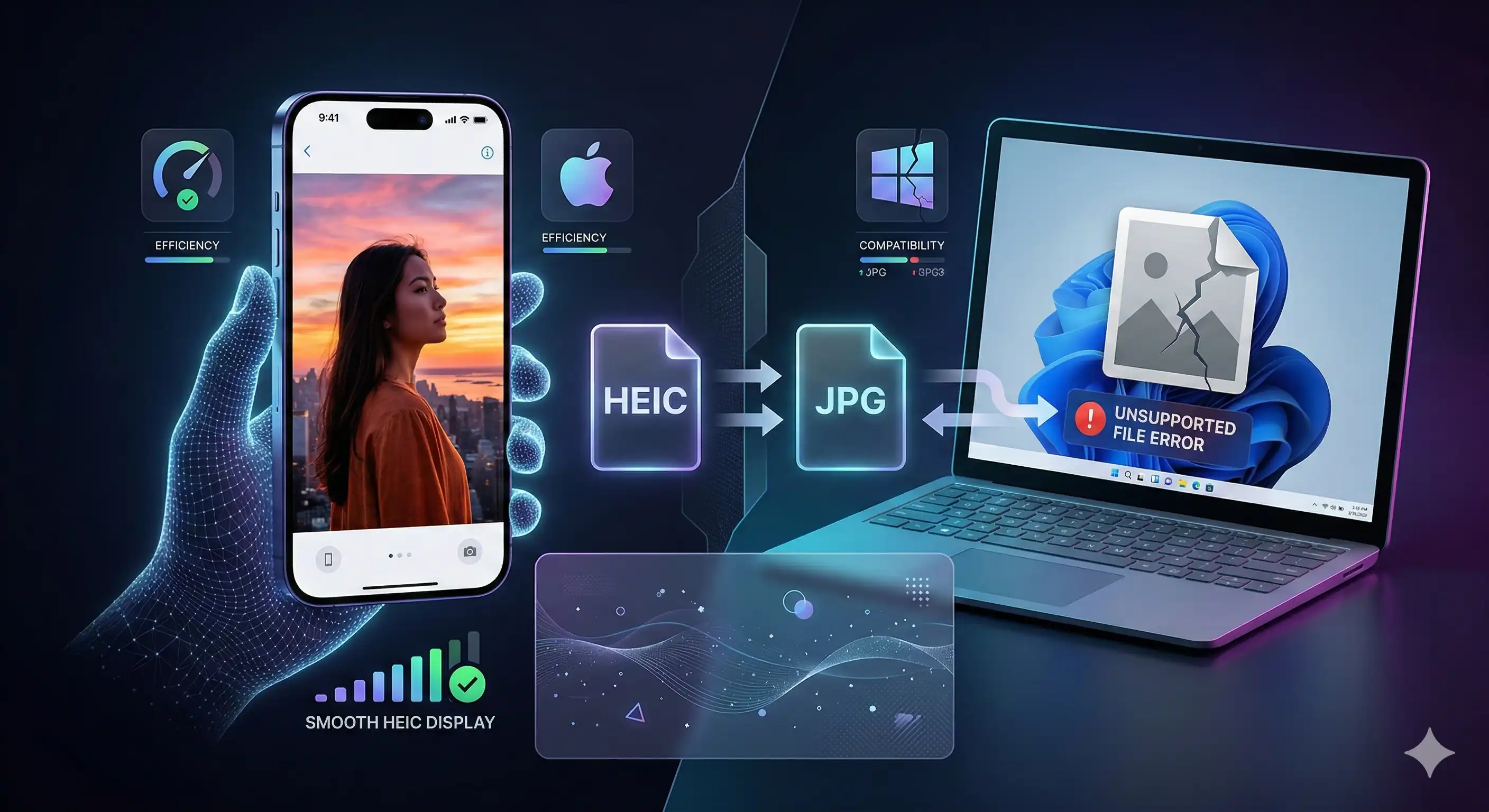
You plug your iPhone into your Windows PC, copy over your photos, and then — nothing. Windows Photo Viewer throws an error. File Explorer shows a blank thumbnail. The image simply won't open.
You're not doing anything wrong. The file format your iPhone uses by default — HEIC — is technically superior to JPG in almost every measurable way, but Windows has no native support for it out of the box. The result is a frustrating compatibility wall between two of the world's most popular devices.
This guide explains exactly why this happens and gives you four ways to fix it — including a free, instant solution that requires zero software installs.
What Is HEIC?
HEIC stands for High Efficiency Image Container. It's a file format that uses the HEVC (H.265) compression codec — the same technology used to compress 4K video — to store photographs. Apple introduced HEIC as the default iPhone camera format with iOS 11 in 2017.
The file extension you'll see is .heic or occasionally .heif
(High Efficiency Image File Format — HEIC is technically a subset of HEIF). For
practical purposes, they're the same thing.
Despite being developed by the Moving Picture Experts Group (MPEG) as an open standard, HEIC adoption outside of Apple's ecosystem has been slow — which is exactly why your Windows PC struggles with it.
Why Apple Switched to HEIC (And Keeps Using It)
Apple didn't switch to HEIC arbitrarily. For iPhone users, the benefits are real and significant:
Half the Storage, Same Visual Quality
HEIC files are approximately 50% smaller than equivalent JPG files at the same perceived quality. A photo that would be 4 MB as a JPG is roughly 2 MB as a HEIC. On a 64 GB iPhone, that effectively doubles your photo storage capacity — which is why Apple made it the default and has no plans to change back.
Better Dynamic Range and Color Depth
JPG supports 8-bit color (16.7 million colors). HEIC supports up to 16-bit color depth, capturing significantly more tonal gradations. This means HEIC photos retain more detail in shadows and highlights — especially important for iPhone's computational photography features like Deep Fusion and Smart HDR.
Live Photos and Burst Storage
HEIC can store multiple images in a single file — the container format supports image sequences, making it ideal for Live Photos (the brief motion clip attached to an iPhone photo) and burst shots. JPG has no equivalent capability and would require individual files for each frame.
Non-Destructive Edits
When you edit a HEIC photo on your iPhone — adjusting exposure, cropping, applying filters — the edits are stored separately inside the same HEIC container. The original pixel data is preserved untouched. With JPG, each edit re-compresses and permanently degrades the image data.
Why Windows Can't Open HEIC Files
Windows 10 and 11 don't include native HEIC support because Microsoft would have to license the HEVC codec from the MPEG Licensing Authority (MPEG LA) — a patent pool covering the H.265 compression standard. Rather than build the licensing cost into every Windows installation, Microsoft made HEIC support an optional add-on.
The result: by default, Windows has no decoder for HEIC files. When Windows Photo
Viewer or Photos app encounters a .heic file, it simply has no idea
what to do with it. The file isn't corrupted — Windows just lacks the codec to
read it.
macOS, by contrast, has supported HEIC natively since macOS High Sierra (2017), the same year Apple introduced it on iPhone. Android added native HEIC support in Android 9 Pie (2018). Windows is the notable holdout.
HEIC vs JPG: Full Comparison
| Feature | HEIC | JPG |
|---|---|---|
| File size (same quality) | ✅ ~50% smaller | ❌ 2× larger |
| Color depth | ✅ Up to 16-bit | ❌ 8-bit only |
| Transparency support | ✅ Yes | ❌ No |
| Multi-image containers | ✅ Yes (Live Photos, burst) | ❌ No |
| Non-destructive edits | ✅ Yes | ❌ No |
| Windows compatibility | ❌ Requires codec / conversion | ✅ Universal |
| Web browser support | ⚠️ Safari only (natively) | ✅ All browsers |
| Social media support | ⚠️ Auto-converted on upload | ✅ Universal |
| Email attachment | ⚠️ May cause issues | ✅ Universal |
| Long-term archival | ⚠️ Less established | ✅ 30+ year standard |
The pattern is clear: HEIC wins on technical quality and efficiency. JPG wins on compatibility. The right choice depends entirely on what you're doing with your photos.
Fix 1: Convert HEIC to JPG Free Online (Easiest Method)
This is the fastest solution — no software to install, works on any device, and takes under 30 seconds. The AI Tech Tactics Image Converter converts HEIC files to JPG (or PNG, WebP) directly in your browser. Your photos never leave your device.
- Go to the converter — Visit aitechtactics.com/tools and open the Image Converter.
- Upload your HEIC file(s) — Drag and drop one or multiple
.heicfiles. Batch conversion is supported. - Select JPG as the output format — You can also choose PNG for lossless quality or WebP for web use.
- Adjust quality if needed — The default 85% quality setting is visually indistinguishable from 100% and produces significantly smaller files.
- Download your JPG files — Converted files are ready instantly. No watermarks, no size limits, no account.
This method is ideal for occasional conversions — when you have a batch of photos from a trip or event that you need to share with Windows users or upload to a website.
Fix 2: Change Your iPhone Camera Settings (Permanent Fix)
If you regularly share photos with Windows users — or upload to platforms that don't auto-convert HEIC — the cleanest long-term solution is to make your iPhone shoot in JPG by default.
- Open the Settings app on your iPhone.
- Scroll down and tap Camera.
- Tap Formats.
- Under Camera Capture, select Most Compatible instead of High Efficiency.
Most Compatible tells your iPhone to shoot in JPG (and H.264 video instead of HEVC). Your photos will open on any device instantly, at the cost of roughly 2× larger file sizes and slightly reduced dynamic range.
You can switch back to High Efficiency at any time — for example, when you're taking personal photos for storage, switch back to save space. When you know you'll be sharing with Windows users, switch to Most Compatible beforehand.
The Transfer Trick (Best of Both Worlds)
There's a setting that lets you keep HEIC on the iPhone but automatically convert to JPG when transferring to a PC:
- Settings → Photos
- Scroll to Transfer to Mac or PC
- Select Automatic
With this setting, your iPhone stores photos in space-efficient HEIC internally, but automatically converts them to JPG whenever you transfer via USB to a Windows PC. This is arguably the ideal configuration for most users.
Fix 3: Install the Windows HEIC Codec (One-Time Setup)
If you frequently receive HEIC files and want Windows to open them natively — without converting — you can install the HEVC codec directly from the Microsoft Store.
Option A: Free (Via Device Manufacturer)
Some Windows 10/11 devices come with the HEVC codec pre-installed from the manufacturer. Check if your Photos app can already open HEIC files — if so, you're already done.
Option B: Paid Codec ($0.99)
- Open the Microsoft Store on your Windows PC.
- Search for "HEVC Video Extensions".
- Install HEVC Video Extensions from Device Manufacturer (free if available) or HEVC Video Extensions ($0.99).
- After installing, Windows Photos will open
.heicfiles natively.
Option C: Free Third-Party Apps
Apps like iMazing HEIC Converter (Windows/Mac) or CopyTrans HEIC for Windows add HEIC support to Windows Explorer and Photos for free. They work well but require installation and occasional updates.
For most people, the free browser-based conversion at AI Tech Tactics is simpler than any of these options — especially if you only need to convert occasionally.
Fix 4: Share via Email or AirDrop (Auto-Converts)
This is the most overlooked fix — and it requires zero effort.
When you share a photo from your iPhone using the native iOS Share Sheet (the box-with-arrow icon), iOS automatically converts HEIC to JPG before sending. This applies to:
- Sending via Mail app
- Sharing via Messages (iMessage / SMS)
- Uploading to Google Photos, Instagram, Twitter/X via share sheet
- Sharing to Dropbox, Google Drive, OneDrive via share sheet
The conversion happens silently in the background. The recipient always gets a universally compatible JPG. The original HEIC file on your iPhone is untouched.
What doesn't auto-convert: Transferring via USB cable to Windows, copying from iCloud Drive on Windows, or AirDropping to a Windows PC (AirDrop is Apple-to-Apple only — Windows users can't receive AirDrop). In these cases, you need one of the other methods above.
Should You Switch Back to JPG Permanently?
It depends on your situation. Here's a practical guide:
| Your Situation | Recommendation |
|---|---|
| Mostly share photos with other iPhone / Mac users | Keep HEIC — full compatibility within Apple ecosystem |
| Frequently share with Windows users or Android friends | Switch to Most Compatible in Camera settings |
| Upload photos to a website or blog | Convert to WebP or JPG using our Image Converter |
| Low iPhone storage (64 GB or less) | Keep HEIC — the 50% size saving is significant |
| Professional photography / client deliverables | Shoot in Most Compatible for universal compatibility |
| Long-term archiving / backup | Convert to JPG for archival — JPG is a 30+ year proven standard |
There's no single right answer. Most iPhone users benefit from keeping HEIC enabled and using the Automatic transfer setting (Settings → Photos → Transfer to Mac or PC → Automatic) as a seamless background fix.
Frequently Asked Questions
Does converting HEIC to JPG lose quality?
Yes, but usually imperceptibly so. Converting from HEIC to JPG at 85–90% quality produces a file that's visually identical to the original for all practical purposes. The technical loss is that HEIC's 16-bit color depth is reduced to JPG's 8-bit — but on a standard monitor, you won't see the difference. The bigger practical concern is that the conversion is one-way: always keep your original HEIC files as a backup.
Why do my HEIC photos look fine on my iPhone but broken on Windows?
Your iPhone has native HEIC support built into iOS — it can render HEIC perfectly. Windows lacks the HEVC codec by default, so its image viewer has no decoder for the file. The image data is completely intact; Windows just can't read it without the codec installed or a conversion step.
Will Instagram, Facebook, or Twitter accept HEIC uploads?
Most major social platforms auto-convert HEIC to JPG on their servers when you upload directly from the iOS share sheet. However, if you're uploading from a Windows browser, you'll want to convert first since browser-based uploaders on Windows don't handle HEIC. Use our free Image Converter before uploading from any non-Apple device.
Is HEIC the same as HEIF?
Nearly, but not exactly. HEIF (High Efficiency Image File Format) is the container
format standard developed by MPEG. HEIC is Apple's specific implementation of HEIF
using the HEVC (H.265) codec. Think of HEIF as the specification and HEIC as
Apple's version of it. For practical purposes, .heic and
.heif files behave identically and can be converted with the same tools.
Can I convert HEIC to PNG instead of JPG?
Yes — and PNG is the better choice when you need transparency or pixel-perfect quality (for screenshots, UI graphics, or images with text). PNG uses lossless compression so no quality is lost during conversion. The trade-off is larger file sizes than JPG. Use our Image Converter to convert HEIC to PNG, JPG, or WebP — whichever suits your use case.
Does iCloud automatically convert HEIC photos?
When you access iCloud photos through a web browser at icloud.com, Apple automatically serves JPG versions of your HEIC photos for compatibility. However, if you download via the iCloud for Windows app, files may arrive as HEIC unless you've configured the transfer setting mentioned in Fix 2 above.
⚡ Try Our Free Tools
Convert HEIC to JPG instantly — free, private, runs entirely in your browser. No app installs, no account needed.